
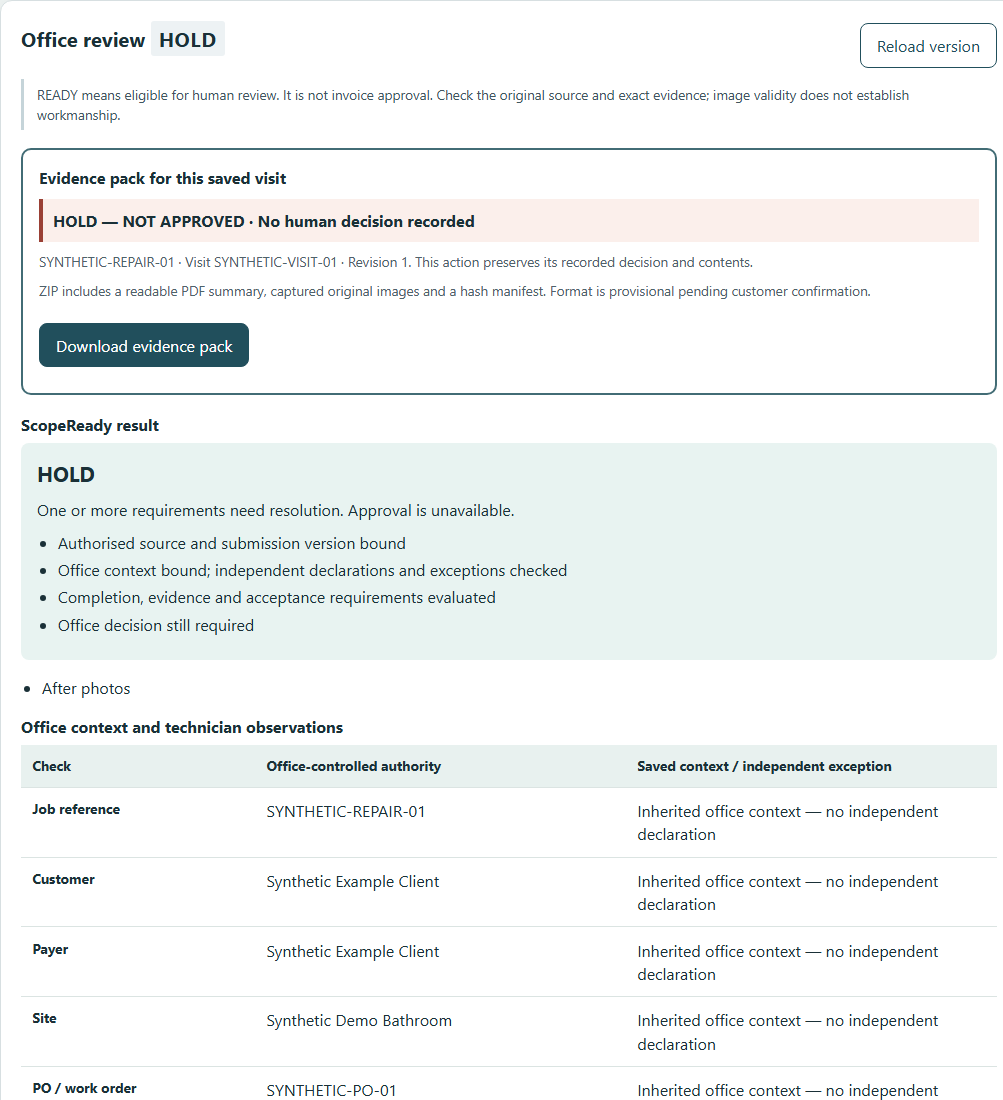
HOLD
The required after photo is missing.
The saved check flags “After photos”. Reporting the repair complete does not clear the missing evidence.
For UK commercial surface and cosmetic repair teams
Bring agreed job details, technician notes and photos into one record. ScopeReady flags gaps and discrepancies so your office can resolve them before invoicing.
Built for teams with technicians on site and office staff checking completed work.
Inside ScopeReady
A bath-rim chip repair, £180 agreed, with before-and-after photos required. The technician reports it complete but supplies only the before photo.
Fictional job · Synthetic evidence · Recorded application screensThe saved check flags “After photos”. Reporting the repair complete does not clear the missing evidence.
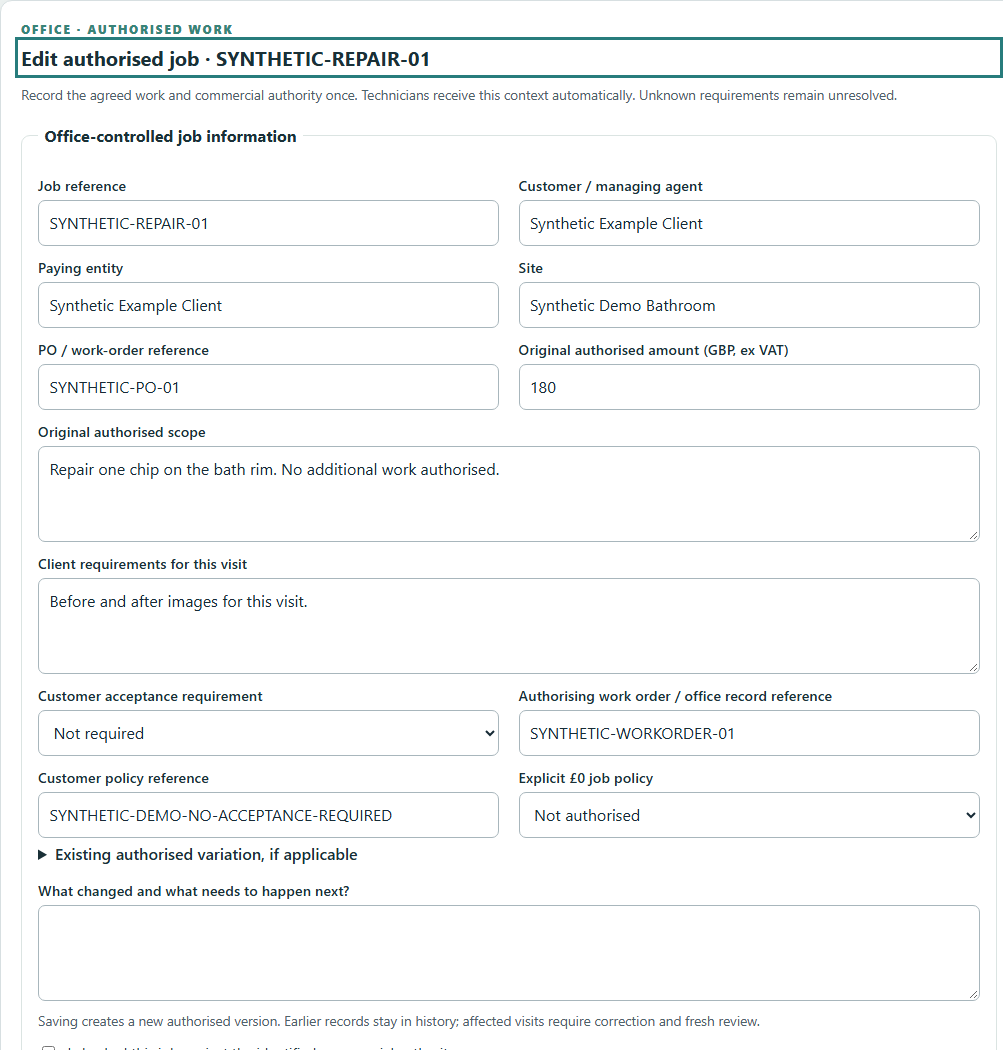
One repair, the work-order and PO references, £180 and the photo requirements are entered directly into ScopeReady. No extra work is authorised.
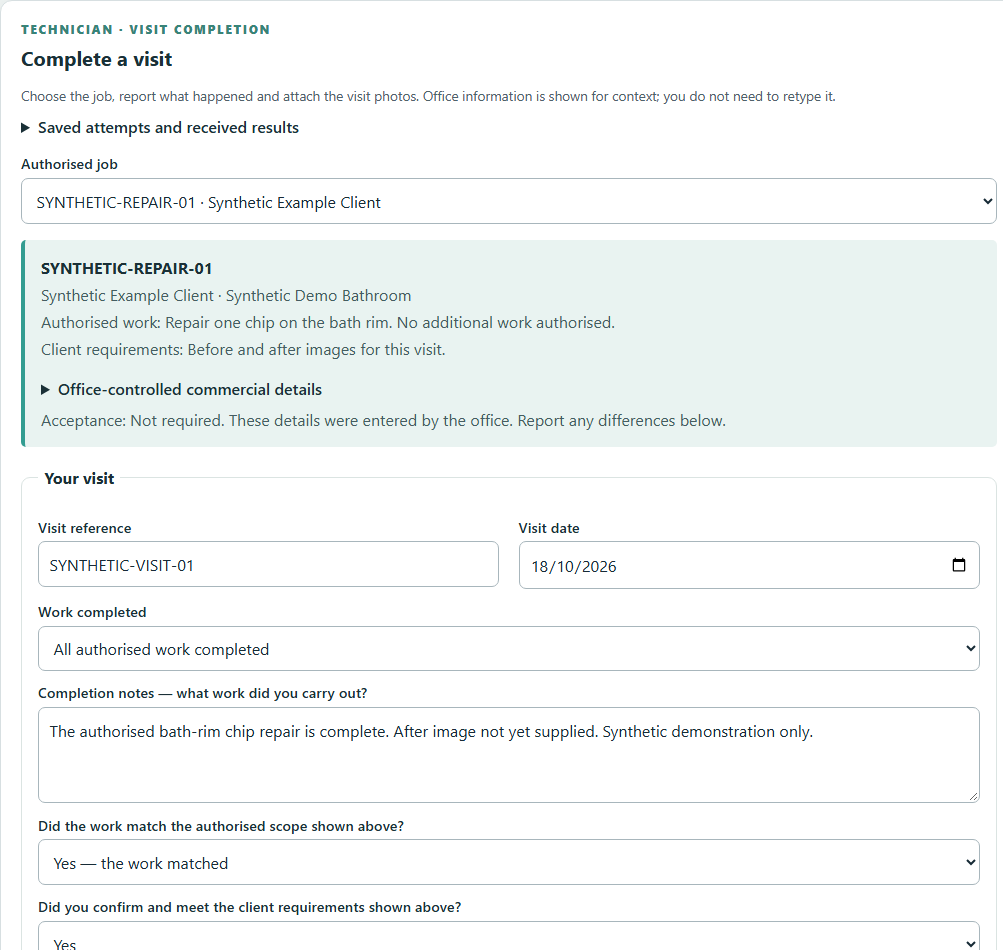
The first submission includes a completion note and before photo. The missing after photo causes the HOLD shown above.
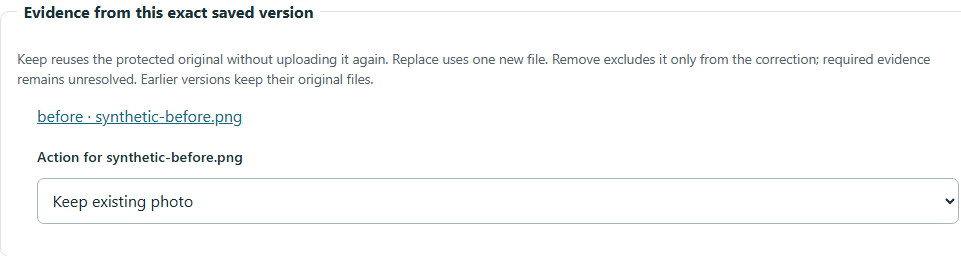
The technician retains the original before photo, adds the after photo and clarifies the note. Version 2 is saved; version 1 stays in history.
Version 2 passes the defined checks and becomes READY for office review. No office decision has been recorded yet.
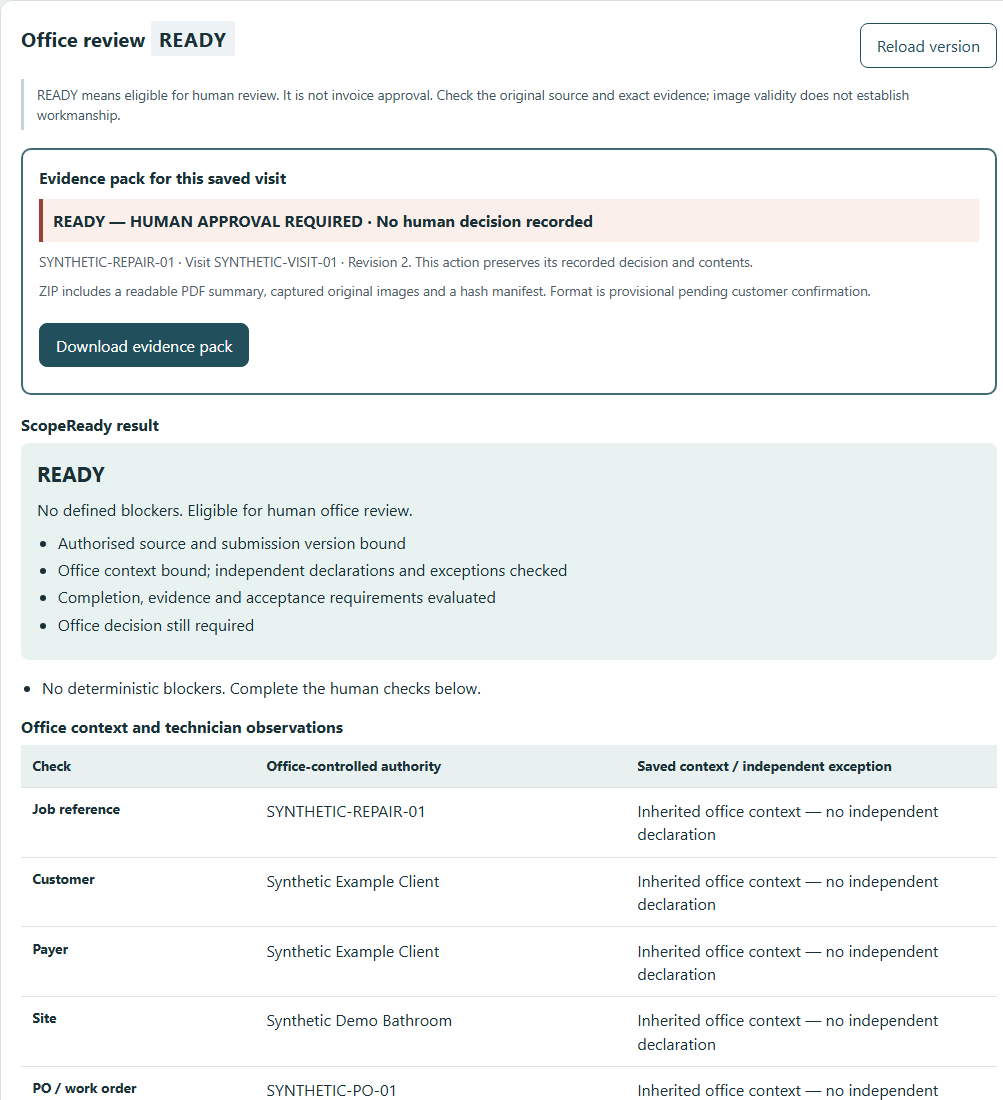
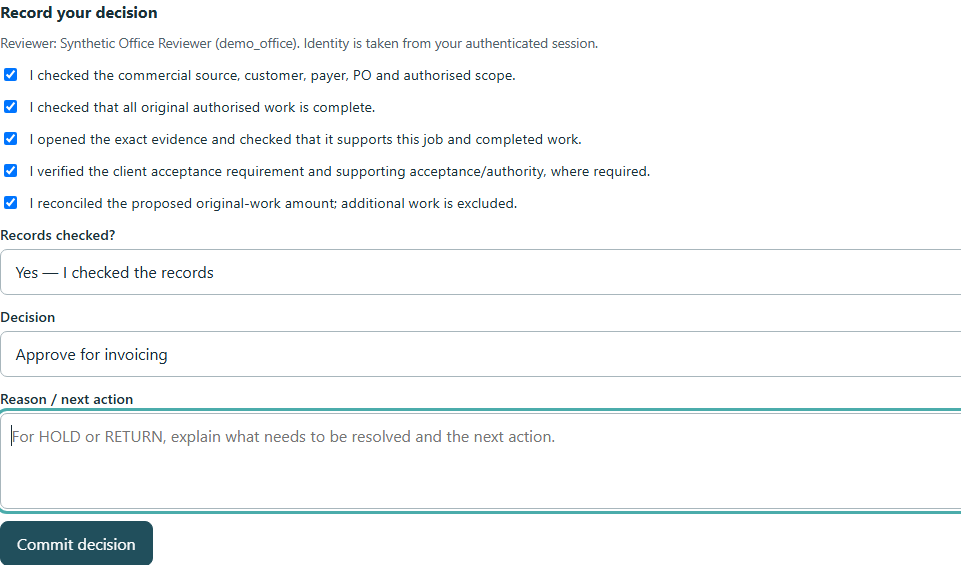
The office reviews the evidence and amount, checks the attestations and explicitly chooses Approve for invoicing.
The PDF and ZIP belong to this visit, submission version and recorded decision. The ZIP includes the PDF, a manifest and original synthetic images.
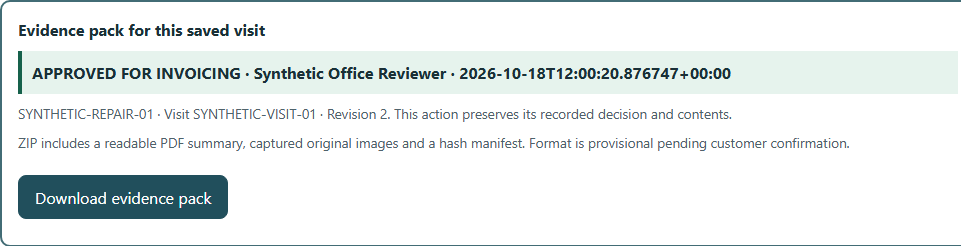
Original output from this example. The pack is a supporting record, not an issued invoice.
Made with the verified Improvement03 application candidate, 16 October 2026, including Improvements 02, 04 and 05. The saved-record summary identifies the exact source. All seven captures and the original PDF/ZIP are from that candidate using synthetic data.
This is a locally verified, unpublished website candidate. Hosted enquiry collection and independent application operation remain unverified. Technical PDF/ZIP checks passed; customer acceptance of the proposed pack format is still pending.
The screenshots are records of the demonstrated workflow. They do not process anything in your browser. The evidence-pack screen follows a saved, explicit office decision.
How it works
The office records the agreed work, amount, references and evidence requirements.
The technician supplies notes and photos. ScopeReady checks the record and flags gaps.
Corrections are made. The office reviews the record, decides and can export the evidence pack.
Checks and setup
Practical questions
See one repair move from submission to evidence pack. Tell us how your team checks completed work so we can discuss how ScopeReady could fit.
Demonstration candidate; wider availability is still being verified.
No defined blocker was found in that submission. READY is not invoice approval. Your office must review the evidence, workmanship, acceptance and commercial position, then explicitly approve, hold or return the record.
No. A person records the office decision. ScopeReady provides a review record and evidence pack; it does not issue or send invoices.
No existing-software connection is demonstrated here. Job details are entered directly. Connections would need separate assessment, and automatic document interpretation is not part of this demonstrated workflow.
Yes. A technician can revise a note or replace or add a photo while retaining unchanged images. A fresh submission version is checked; the earlier record and its history remain available.
The repair-job walkthrough, correction, office review and sample evidence pack, plus a discussion of your current checking process and setup requirements. A request does not book a demonstration or commit you to a service.
Prefer email? chris@scopeready.co.uk